How to create an album
An album is just a release with more than one track. The steps are identical to a single — you just repeat the upload step for each track before publishing.
1.Create the release
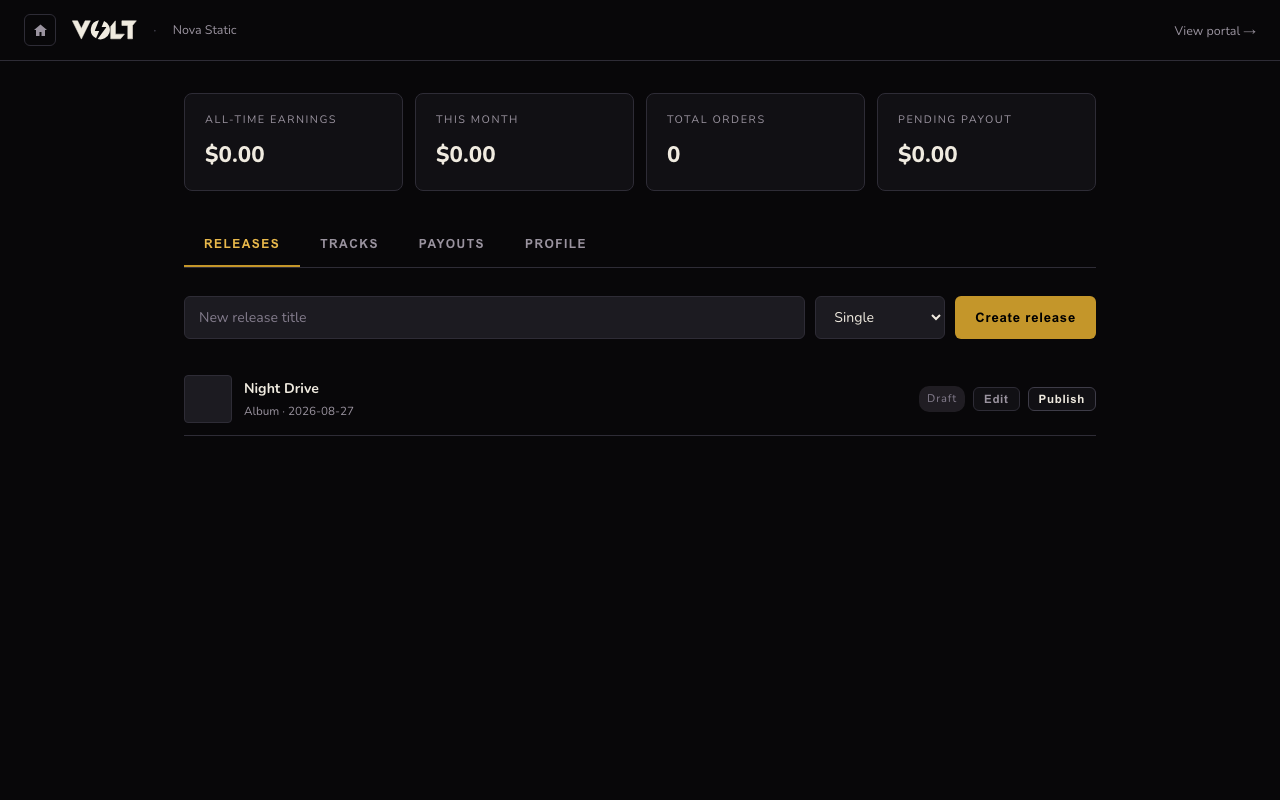
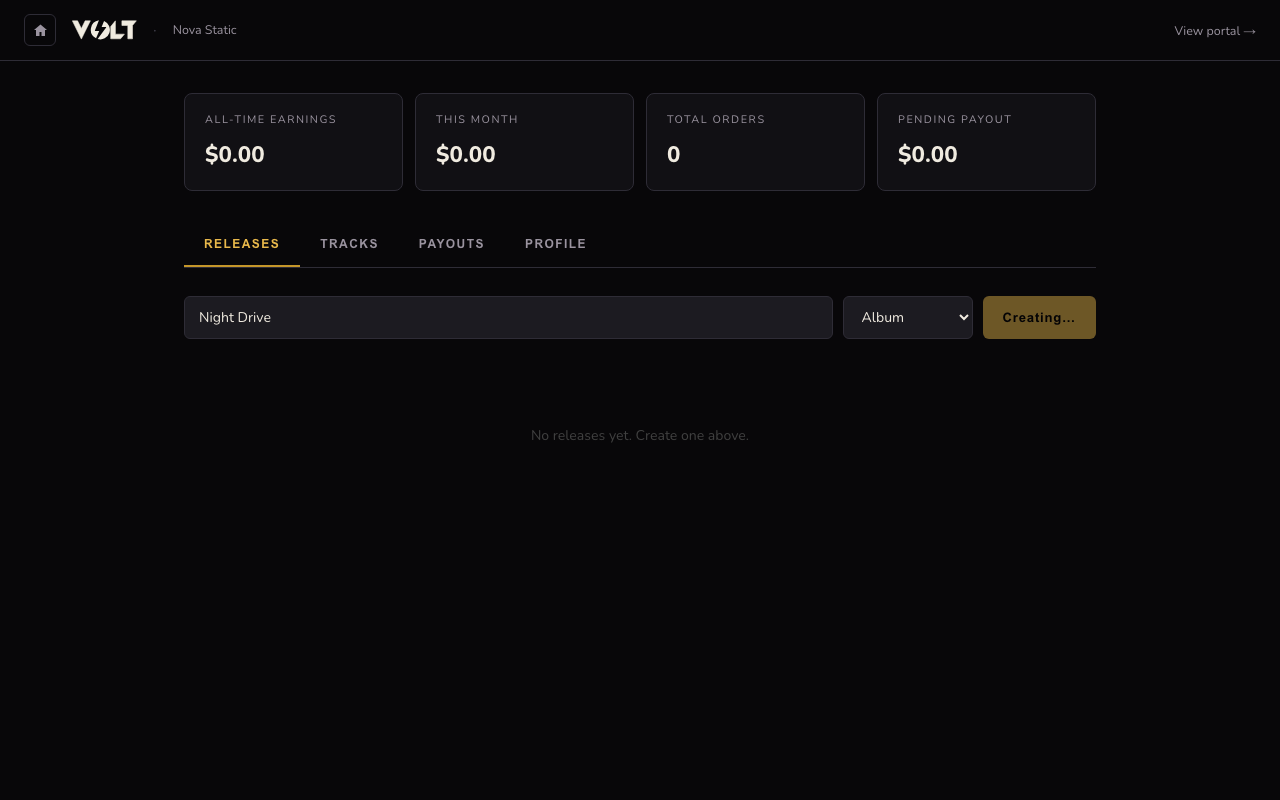
On your dashboard's Releases tab, type a release title, choose Album (or EP / Compilation) from the type dropdown, and click Create release. The release opens in edit mode with fields for release date, label name, catalogue number, description, and artwork — all optional except the title.
2.Add every track
Use Add a track the same way you would for a single — see the upload guide for the details. The form resets after each successful upload, so just repeat it for every track on the album. Each track gets its own title, price (or pay-what-you-want), and formats.
3.Publish each track, then the release
Switch to the Tracks tab and click Publish next to each track once its formats are ready. Once at least one track on the album is published and priced, go back to the Releases tab and click Publish on the release itself to make the whole album live on the storefront.