How to upload a track
Upload a single master file — VOLT generates the other lossless formats and a preview clip for you. This guide assumes you already have an artist account and a release to add the track to.
1.Fill in the track details
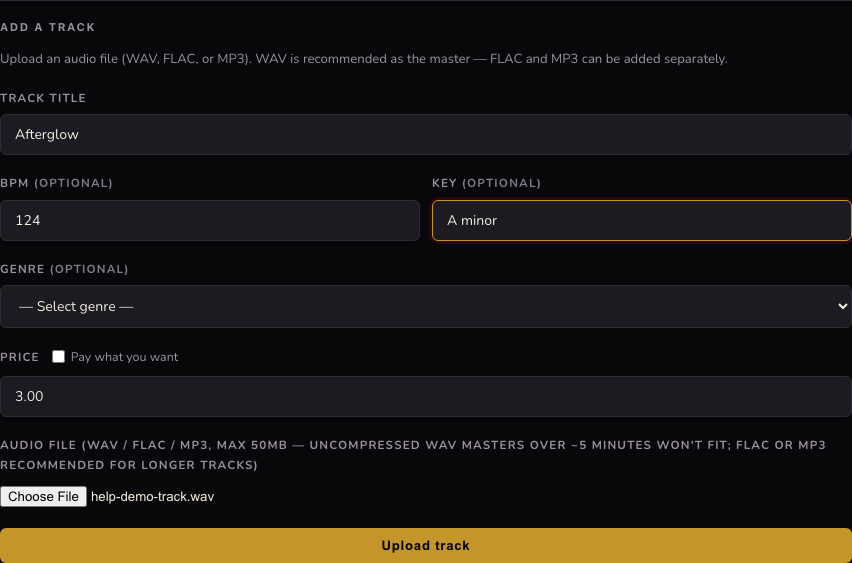
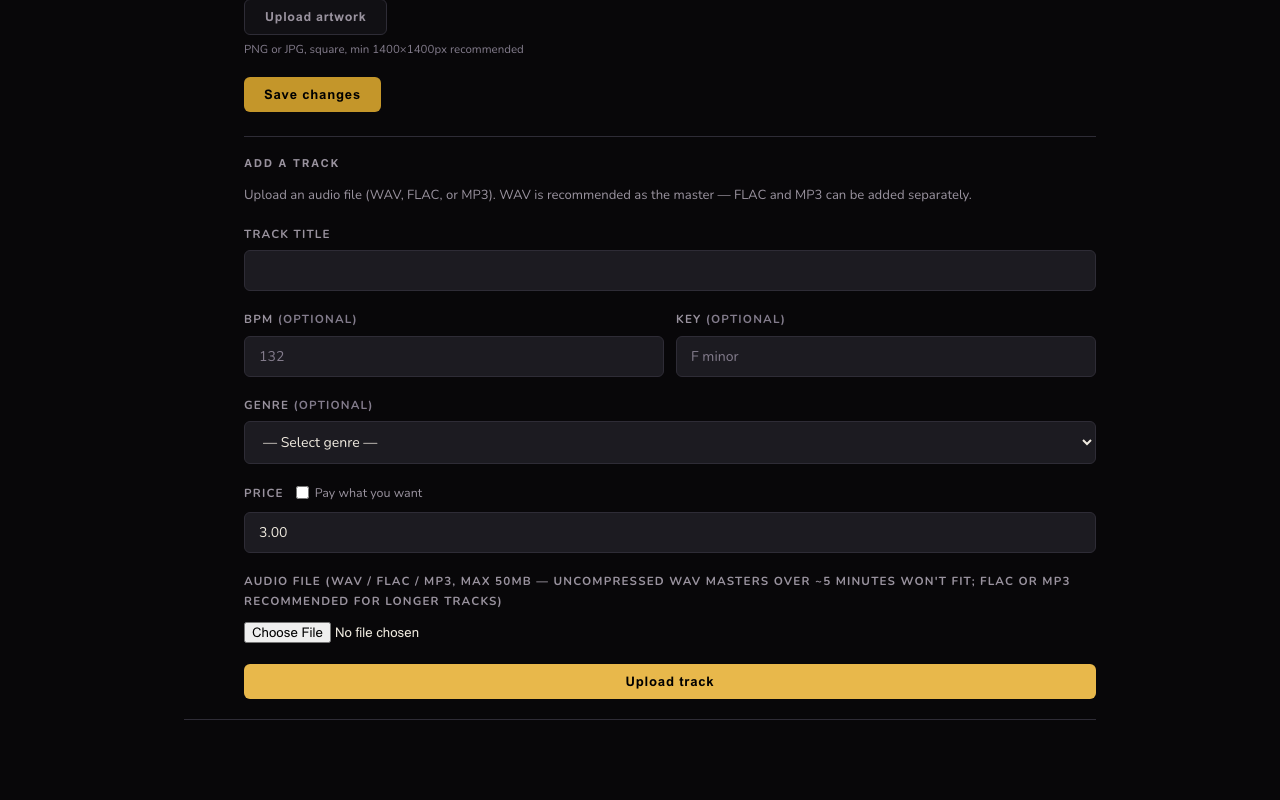
On your dashboard's Releases tab, open a release and scroll to Add a track. Enter a title (BPM, key, and genre are optional but help fans filter and discover your music). Set a price, or check Pay what you want to let buyers choose. Then choose your audio file — WAV, AIFF, FLAC, or MP3, up to 500MB.
2.Wait for processing, then add the next track
Click Upload track. The button shows progress while VOLT uploads the file, converts the missing formats, and builds the preview clip — this takes a few seconds. Once it's done, the form clears and you can add another track straight away if you're building an EP or album.
3.Publish
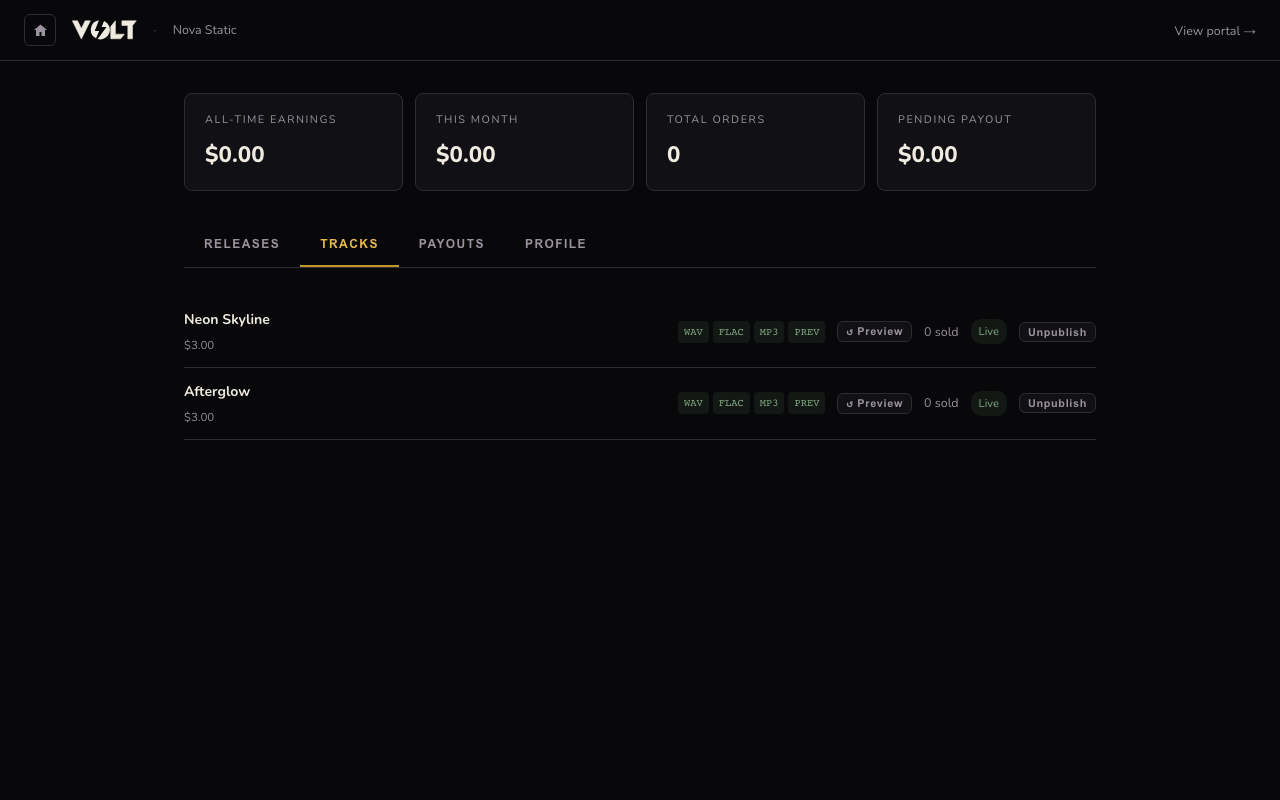
Switch to the Tracks tab to see every track you've uploaded, with a badge for each format (WAV / FLAC / MP3 / AIFF / PREV) that lights up once it's ready. A new track starts as a Draft — click Publish next to it to make it purchasable. You can Unpublish at any time to pull it from sale without deleting it.